


Every year, beginner programmers lose hours of work because a file gets accidentally overwritten or a working version of the code can no longer be found. One wrong click, one forgotten backup, and weeks of work are gone. This is exactly the problem Git has been solving for millions of developers worldwide for over two decades.
Anyone learning Git for beginners quickly runs into two terms that are often confused: Git and GitHub. This article explains both concepts from the ground up, shows the most important commands with practical examples, and covers the typical mistakes beginners make most often.
Table of Contents
Key Takeaways
- Git is a version control system that tracks changes to files; GitHub is an online platform for hosting and sharing Git repositories.
- The most important basics for Git for beginners are Repository, Commit, Branch, Push, Pull, and Merge.
- With just five commands (git init, git clone, git add, git commit, git push) you can already map out a complete workflow.
- The most common beginner mistakes involve forgetting git add, unclear commit messages, missing .gitignore files, and pushing directly to the main branch.
- Official documentation from GitHub and Microsoft Learn offers free, practical entry points for learning version control.
What Is Git and How Does Version Control Work
Git is a free, open-source version control system. It doesn’t just store the current version of a file, but the entire history of all changes. Every intermediate state remains permanently preserved and can be restored if needed.
Unlike a simple copy on your desktop, Git precisely records what changed between two points in time, line by line. This makes it possible to undo mistakes, manage different development states in parallel, and work together on a project as a team without overwriting each other’s files.
For getting started with Git for beginners, it’s worth internalizing three core concepts before diving into the first commands:
Repository (repo for short)
A repository is the project folder that Git monitors. It contains all the project’s files as well as the complete change history in a hidden subfolder called .git.
Commit
A commit is a saved snapshot of the project at a specific point in time. Every commit gets a unique identifier and a description (commit message) explaining what was changed.
Branch
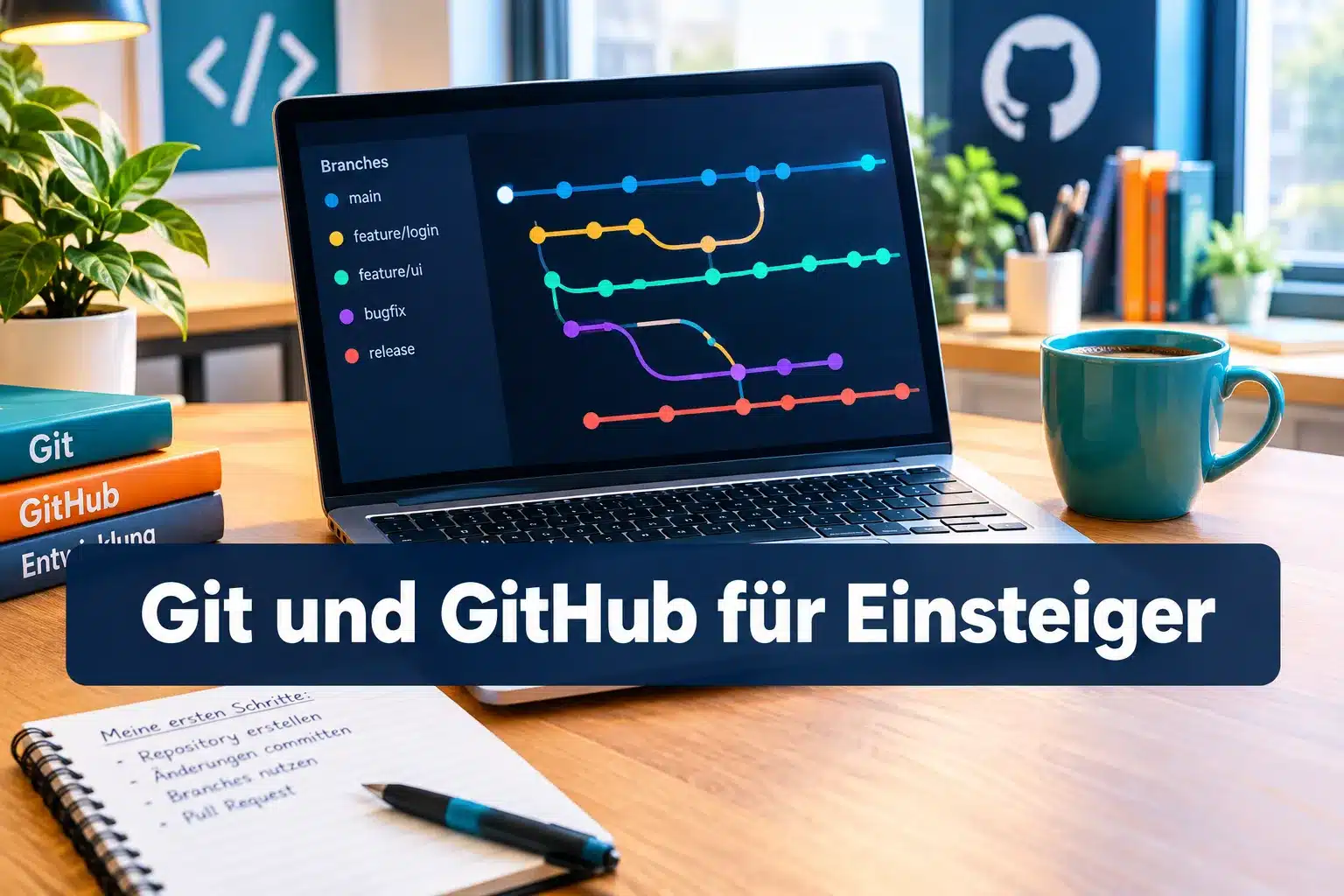
A branch is a parallel line of development. The main branch is usually called main. New features are often developed on a separate branch without endangering the stable main codebase.
“Git turns chaos into traceable history — every change becomes a chapter you can revisit later.”
What Is GitHub and How Does It Differ from Git
A common misconception in Git for beginners courses is the assumption that Git and GitHub are the same thing. They are not.
Git is the software that runs locally on your own computer and handles version management. GitHub, on the other hand, is an online platform where Git repositories can be hosted, shared, and worked on collaboratively [2]. You could compare Git to the grammar of a language and GitHub to a public library where texts written in that language are published and discussed.
The following table summarizes the key differences:
| Feature | Git | GitHub |
|---|---|---|
| Type | Version control system (software) | Web hosting platform |
| Installation | Local on your computer | No download needed, runs in the browser |
| Collaboration | Local only, no network required | Enables teamwork over the internet |
| Core functions | init, add, commit, branch, merge | Pull requests, issues, project boards |
| Cost | Free and open source | Free with optional paid plans |
GitHub extends Git with additional tools such as pull requests, issue tracking, and project management features that are especially valuable for teamwork [1]. Alternatives like GitLab or Bitbucket work on a similar principle, but GitHub is the most widely used platform of its kind worldwide.
The Most Important Basics: Repository, Commit, Branch, Push, Pull, and Merge
Before running the first commands, a compact vocabulary helps. These terms form the foundation of Git for beginners and come up in practically every tutorial.
- Repository: The project folder with the complete change history.
- Commit: A saved intermediate state with a description.
- Branch: A separate line of development, usually for new features.
- Push: Local commits are uploaded to a remote repository (e.g., on GitHub).
- Pull: Changes from a remote repository are downloaded to your own computer.
- Merge: Two branches are combined so their changes are merged together.
- Clone: A complete copy of an existing repository is created locally.
A helpful image: think of the repository as a book, each commit as a new chapter, branches as alternative storylines, and merge as the moment when two storylines come back together into one story.
Getting Started with Git: The Most Important Commands in Detail
The practical starting point is the command line (terminal). If you prefer a graphical interface, you can use GitHub Desktop instead, which maps many of these steps to clicks [3][6]. The following five commands are enough for your first complete workflow.
git init, Create a new repository
git init
This command turns a regular folder into a Git repository. A hidden .git folder is created that will log all changes from now on. Ideal for a new, locally started project.
git clone, Download an existing repository
git clone https://github.com/username/projectname.git
With git clone, a complete copy of a repository is downloaded from GitHub to your own computer, including the full history. This is the usual entry point when you want to contribute to an existing project.
git add, Add changes to the staging area
git add file.txt
Or for all changed files:
git add .
This step marks files for the next commit. Git deliberately distinguishes between a “changed file” and a “file staged for commit” — this intermediate step is called the staging area.
git commit, Save a snapshot
git commit -m "Added navigation to homepage"
The commit permanently saves the current state in the history. The message after -m should briefly and precisely describe what was changed.
git push, Upload changes to GitHub
git push origin main
This command transfers all local commits to the remote repository on GitHub. Only after the push are the changes visible to team members or the public.
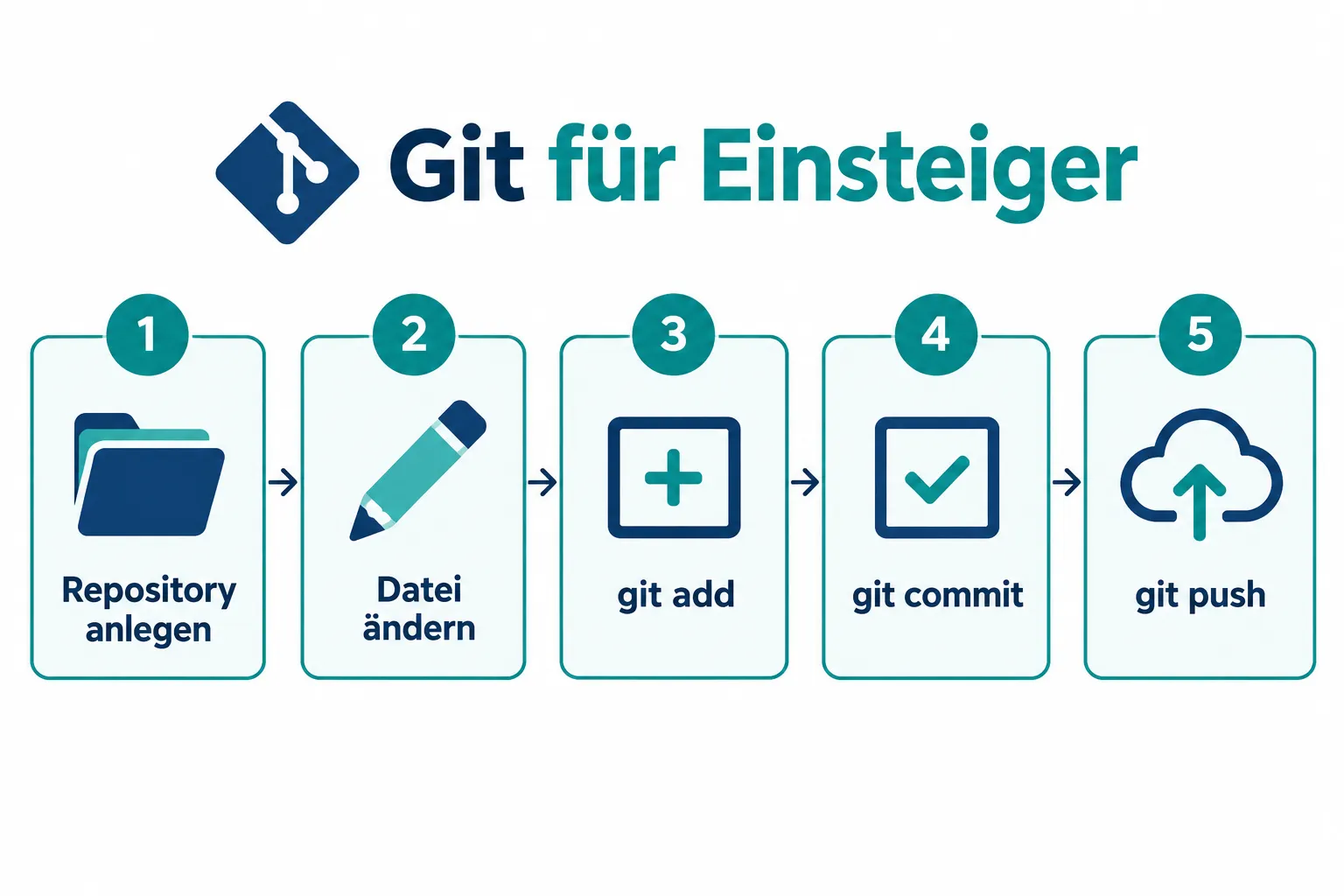
A typical workflow for a small project looks like this:
git init, initialize the project- Edit or create a file
git add ., stage the changesgit commit -m "description", save the changesgit push origin main, upload the changes
These five steps form the core of every Git for beginners workflow and become almost automatic over time.
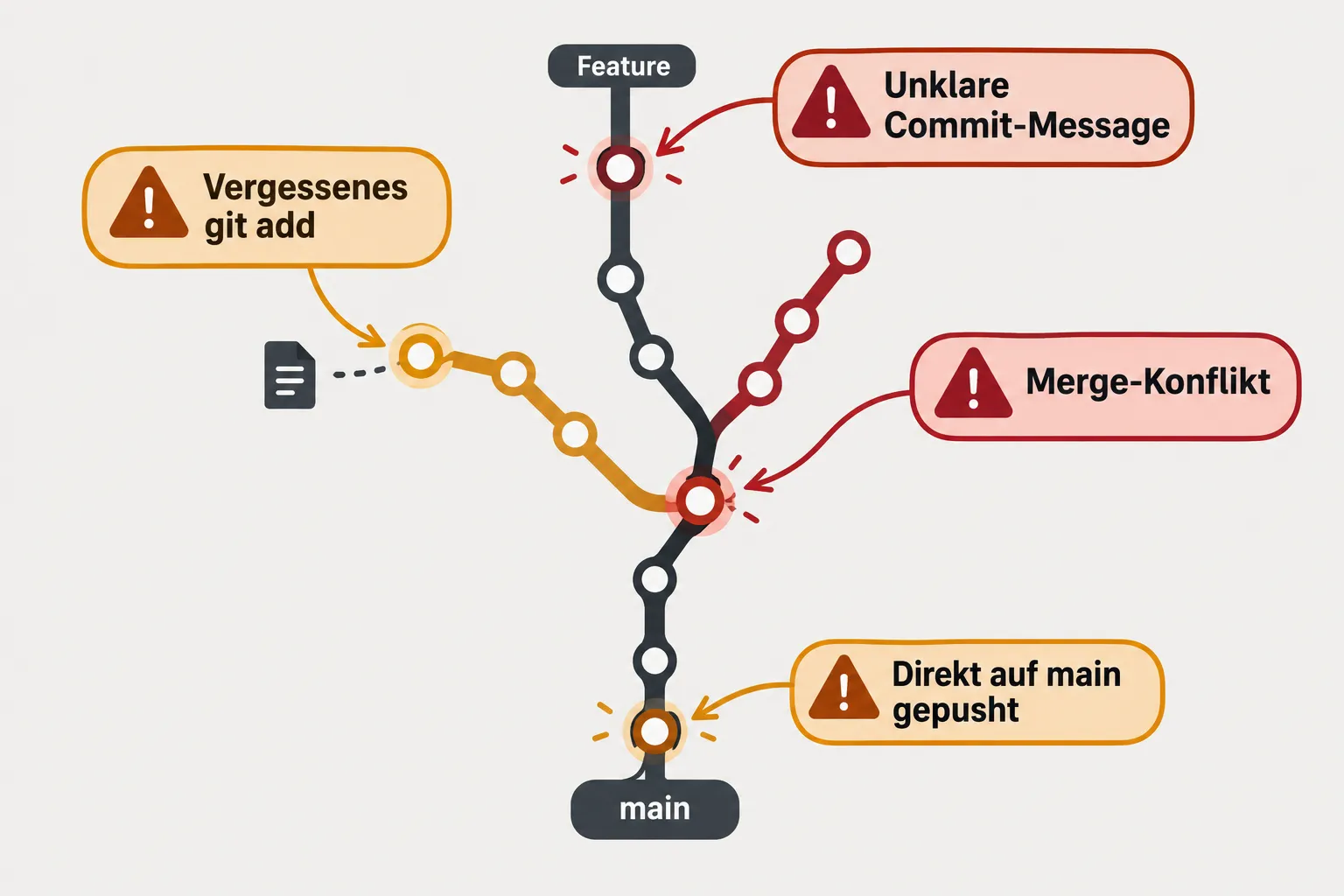
Common Beginner Mistakes with Git and GitHub to Avoid
Even with the best guide, typical stumbling blocks happen at the start. Knowing these pitfalls in advance saves a lot of frustration.
Forgetting git add
One of the most common error messages happens when a file is changed but not added to the commit with git add. Git can only save changes it knows about. Running git status reliably shows which files haven’t been staged yet.
Unclear or missing commit messages
A commit message like “update” or “fix” doesn’t help anyone, not even your future self. Better are short, active descriptions like “Validated login form” or “Fixed typo in README.”
Merge conflicts
When two people change the same line of code differently, Git can’t automatically merge the changes. A merge conflict occurs, which Git marks in the affected file. The solution: manually review the marked sections, keep the desired version, and commit again afterward.
Missing .gitignore file
Without a .gitignore file, unnecessary files often end up in the repository, such as temporary files, credentials, or large build folders. A simple .gitignore file with entries like node_modules/ or .env reliably prevents this.
Pushing directly to main
Especially in team projects, it’s risky to push changes directly to the main branch. Instead, it’s common practice to create a separate feature branch and have the changes reviewed via a pull request on GitHub before they land in main.
The following overview summarizes the mistakes and their solutions:
| Mistake | Cause | Solution |
|---|---|---|
| Change missing from commit | Forgot git add | Check git status, then git add |
| Unclear history | Weak commit message | Use short, precise descriptions |
| Merge conflict | Same line changed in parallel | Manually resolve conflict markers |
| Unnecessary files in repo | Missing .gitignore | Set up .gitignore early |
| Unstable main branch | Pushing directly to main | Use feature branches and pull requests |
Conclusion: Your Next Step on the Git Learning Journey
Version control feels abstract at first, but becomes second nature with every bit of practice. The key to understanding Git for beginners isn’t memorizing every command, but internalizing the basic workflow: make a change, stage it with git add, save it with git commit, and share it with git push.
If you want to go deeper into web development after your first steps with Git, the guide Getting Started as a Backend Developer offers further fundamentals on PHP, Node.js, and MySQL.
As a next step, it’s a good idea to set up a small, unimportant test project and experiment risk-free: create branches, deliberately provoke a merge conflict, and resolve it again. Once you’ve gone through these exercises, the fear of the command line quickly fades. Official, free learning paths like GitHub’s interactive Skills modules offer a structured, hands-on environment for this [1][5].
References
[1] Introduction to GitHub – https://github.com/skills/introduction-to-github
[2] Get Started – https://docs.github.com/en/get-started
[3] Getting Started with Git – https://docs.github.com/en/get-started/learning-to-code/getting-started-with-git
[5] GitHub Foundations – https://learn.microsoft.com/en-us/training/paths/github-foundations/
[6] Get Started Easier with GitHub Desktop 2.2 – https://github.blog/news-insights/product-news/get-started-easier-with-github-desktop-2-2/
Frequently Asked Questions
What is the difference between Git and GitHub?
Git is the version control software that runs locally on your machine, while GitHub is an online platform for hosting, sharing, and collaborating on Git repositories.
Which five Git commands are enough for a first complete workflow?
git init, git clone, git add, git commit, and git push together cover the full workflow from creating a repository to uploading your changes.
What is a merge conflict and how do you resolve one?
A merge conflict happens when two people change the same line of code differently; Git marks the affected sections, which you then review manually, keep the desired version, and commit again.
Why shouldn't you push directly to the main branch?
Pushing straight to main is risky because untested changes can immediately destabilize the main codebase; the common practice instead is a feature branch reviewed via a pull request.